




Vezur AI

Remove Text from Video

Remove text from video online with automatic AI processing. Upload footage with burned-in subtitles, captions or timestamps, review the credit cost, then check and download your result. No manual selection is needed.

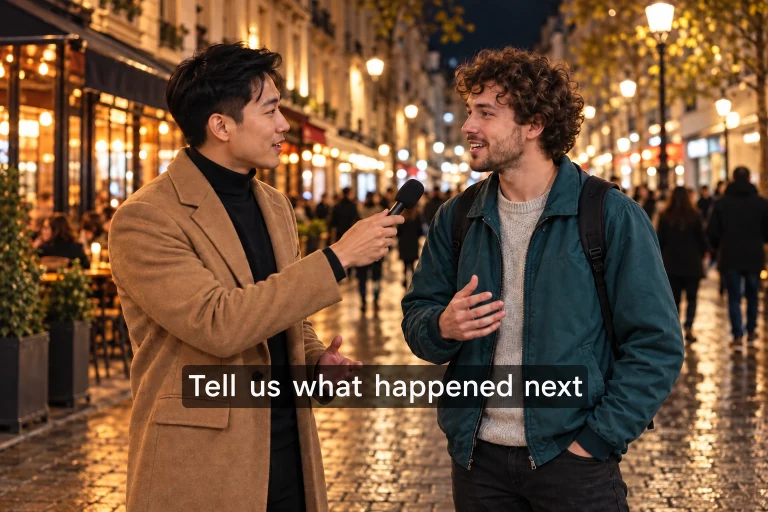
Clear hardcoded subtitles for localization — Before
Clear hardcoded subtitles for localization — After
BeforeAfter

MP4, MOV or WebM · Up to 50 MB per video

Try a sample to explore the preview

AI video processing
Illustrative examples

How to remove text from video online

  1. Upload your footage

    Sign in and upload MP4, MOV or WebM videos, up to 50 MB and 10 minutes per file. Your subscription or credit pack determines your batch allowance. Uploading does not deduct processing credits.

    Upload your footage
  2. Review credits and start processing

    Check the files and estimated cost in the workspace, then start automatic text removal. The rate is 2 credits per second, rounded up to whole seconds with a 3-second minimum per video. No manual text selection is required.

    Review credits and start processing
  3. Preview and download

    Follow each task's status. When processing finishes, compare the result with your original, paying attention to faces, textures and remaining text, then download it. Processing time depends on the video and current workload.

    Preview and download

When to remove text from a video

Clear hardcoded subtitles for localization — Before
Clear hardcoded subtitles for localization — After
BeforeAfter

Clear hardcoded subtitles for localization

Burned-in subtitles remain part of the picture even when you turn captions off in a player. Removing them can prepare a clip for a new language version when the editable project is unavailable. This illustrative comparison shows a cleaner composition; inspect your processed video at subtitle changes before adding translated captions.


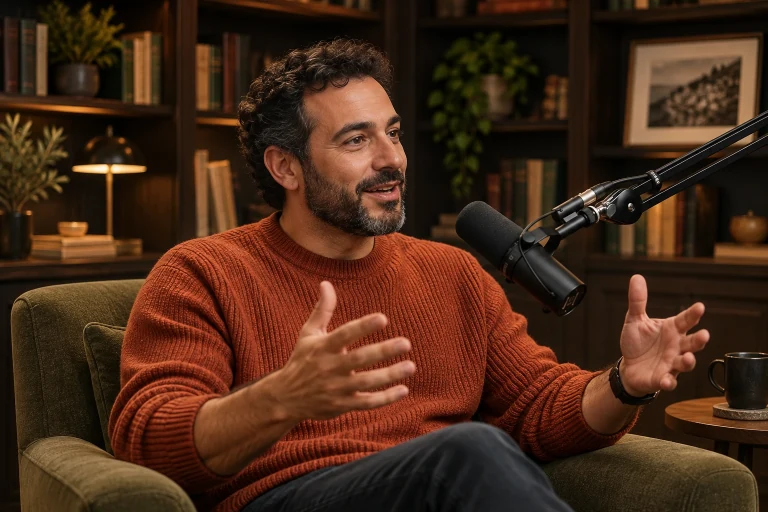
Extract usable segments from branded clips — Before
Extract usable segments from branded clips — After
BeforeAfter

Extract usable segments from branded clips

An outdated promotional label can make otherwise useful product footage difficult to reuse. For clips you own or are authorized to edit, automatic text removal offers a way to prepare a new version. Check product lettering and packaging in the result, because the tool does not let you select individual text regions to preserve or remove.

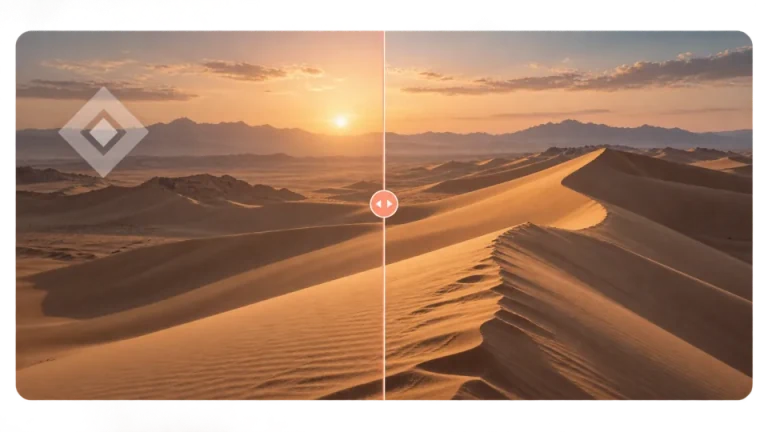
Erase camera timestamps and recording data — Before
Erase camera timestamps and recording data — After
BeforeAfter

Erase camera timestamps and recording data

Dashcams, security cameras, and older camcorders embed permanent date, time, and metadata stamps directly into the video frames. If you plan to use this raw footage in a documentary or a professional presentation, erasing these digital timestamps prevents the audience from being distracted by irrelevant technical data on the screen.

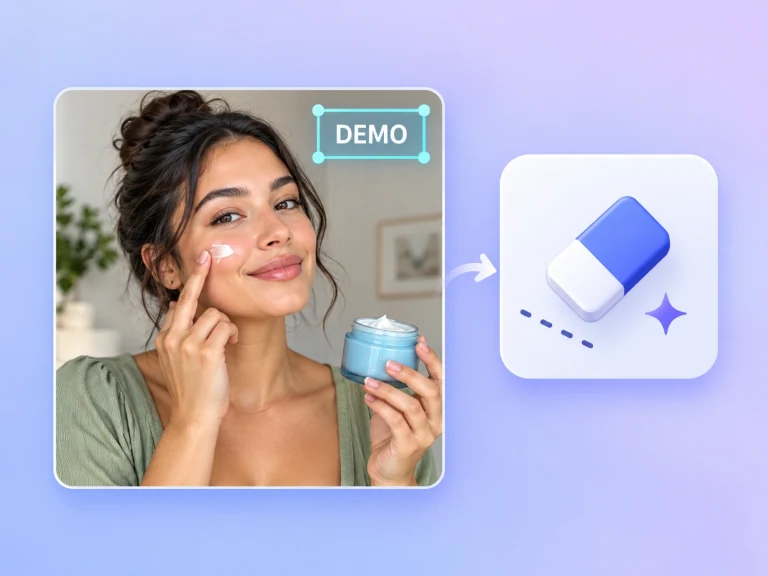
Adapt social media content for multi-channel publishing — Before
Adapt social media content for multi-channel publishing — After
BeforeAfter

Adapt social media content for multi-channel publishing

Prepare your own social clips for a new edit by removing dated captions or promotional text. Review the cleared areas before adding new titles in your editor. These images illustrate possible editing goals; removing an overlay does not guarantee a particular platform will recommend or accept the video.

What to check in your text removal result

Automatic processing without manual masks — Before
Automatic processing without manual masks — After
BeforeAfter

Automatic processing without manual masks

Upload the clip and start processing from the workspace after checking the credit estimate. The tool handles text automatically; there is no brush, bounding box or field for typing a phrase to erase. If some lettering must remain untouched, compare those areas carefully or edit the original project instead.

Check moving subjects and edges — Before
Check moving subjects and edges — After
BeforeAfter

Check moving subjects and edges

Watch the result at normal speed and pause where text crosses a face, hand or moving object. Look for softened edges, smears or flicker in the repaired area. A still comparison helps inspect one frame, but your processed clip is the reference for whether the edit stays consistent throughout the shot.

Review detail and output quality — Before
Review detail and output quality — After
BeforeAfter

Review detail and output quality

Compare the processed video with the original before using it in an edit. Check faces, fine textures and any lettering you wanted to keep, then confirm the downloaded file works in your editor. AI removal can change scene detail; unchanged resolution, frame rate and pixel-perfect reconstruction are not guaranteed.

Process videos in batches — Before
Process videos in batches — After
BeforeAfter

Process videos in batches

Subscriptions and credit packs both include batch-processing benefits. Your batch limit depends on the plan or pack you purchase, as shown on the pricing page and in your workspace. Each video must meet the upload limits and has its own processing cost and status.

Review changing subtitles and scene cuts — Before
Review changing subtitles and scene cuts — After
BeforeAfter

Review changing subtitles and scene cuts

Subtitles and captions can change position, wording or size during a clip. After automatic processing, review each change and scene cut rather than judging only the first frame. These examples do not guarantee removal of every text style; complex backgrounds or text overlapping a subject may leave visible artifacts.

Understand previews before processing — Before
Understand previews before processing — After
BeforeAfter

Understand previews before processing

New users receive free starter credits to try AI video processing. Once these credits run out, subscribe to a plan or buy a credit pack to continue. Processing uses credits based on video duration; previewing the original video on your device is free.

Text removal for your editing workflow

Video Editors and Localization Teams

  • Strip hardcoded foreign language subtitles from archival masters.
  • Reconstruct backgrounds when original project files are inaccessible.
  • Avoid the time-consuming process of manual frame-by-frame cloning in complex software.
Video Editors and Localization Teams

E-commerce and Social Media Marketers

  • Clean up manufacturer provided b-roll by erasing outdated promotional text.
  • Prepare vertical video assets for cross-platform distribution without watermarks.
  • Standardize visual assets by removing inconsistent typography from older product videos.
E-commerce and Social Media Marketers

Documentary Filmmakers and Researchers

  • Remove distracting timecodes and data overlays from dashcam or security footage.
  • Clean up public domain or archival clips containing obsolete broadcast logos.
  • Focus viewer attention entirely on the subject matter rather than technical text.
Documentary Filmmakers and Researchers

Text removal costs, credits and downloads

Check the cost before submitting

Processing is charged by video duration at the rate shown in the workspace, with a 3-second minimum per file and whole-second rounding. Subscriptions and credit packs both provide processing credits; each video in a batch is billed separately.

Follow each task and credit return

Upload your footage for cloud processing and follow each video's status in the workspace. Failed tasks return their processing credits. Check the original task before retrying, because a new submission is charged as a new task.

Review and download completed videos

A subscription or credit pack includes full-result access and the benefits listed on the pricing page. The workspace shows the preview and download options available to your account.

Video text remover FAQ

Explore more creative tools

Ready to clean up your video footage?

Sign in, upload your video and review the estimated credits before starting automatic text removal. Check the finished result and download it for your next edit.